
Integrating Your Rocketbook App with Google Photos (Android Only)
Google Photos allows you to back up your photos and videos for free. Integrate your Google Photos account with the Rocketbook app by following the step-by-step setup process outlined below to set-up Google Photos as one of your app Destinations.
Step 1: Choose Photos As a Destination
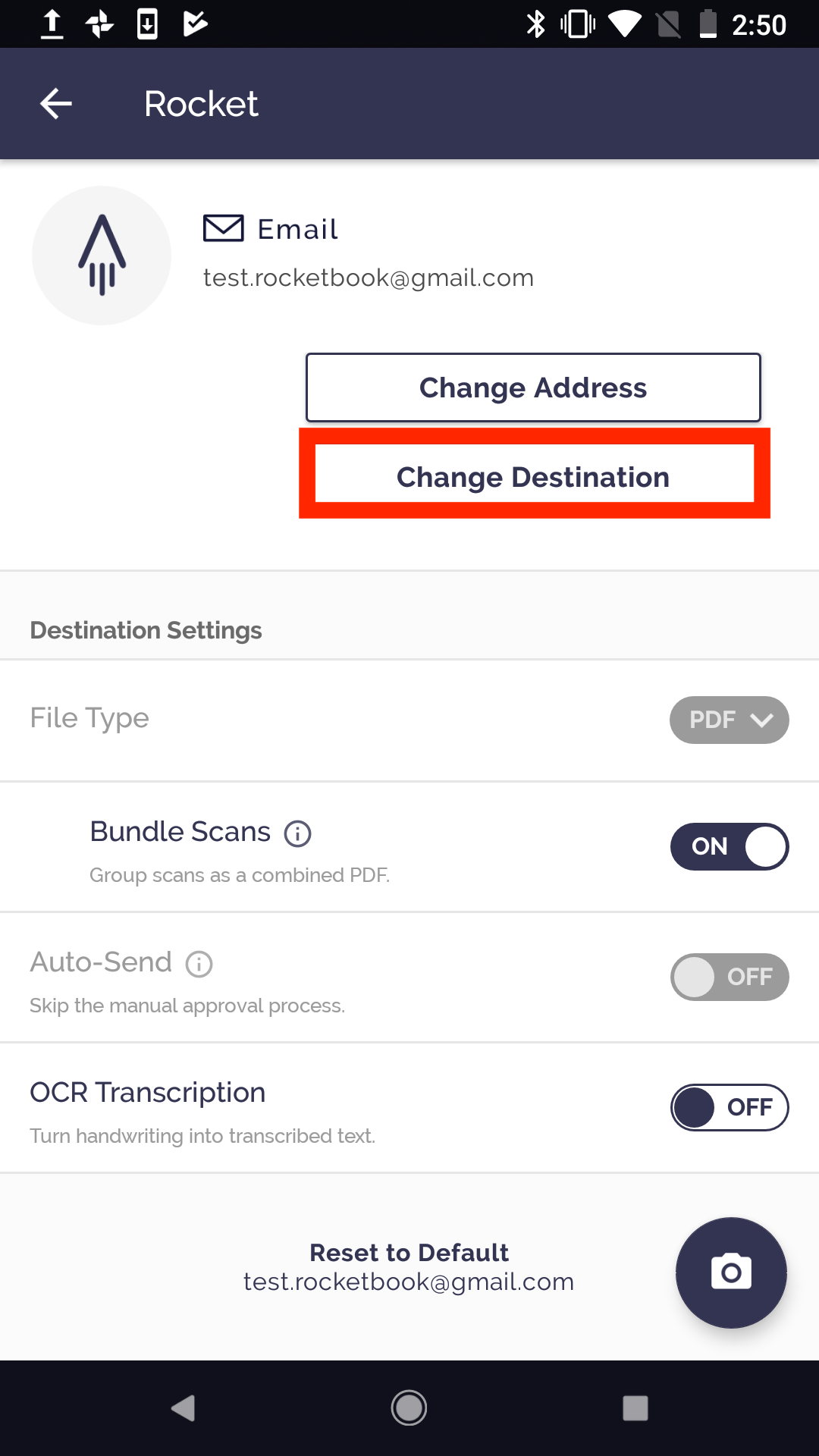
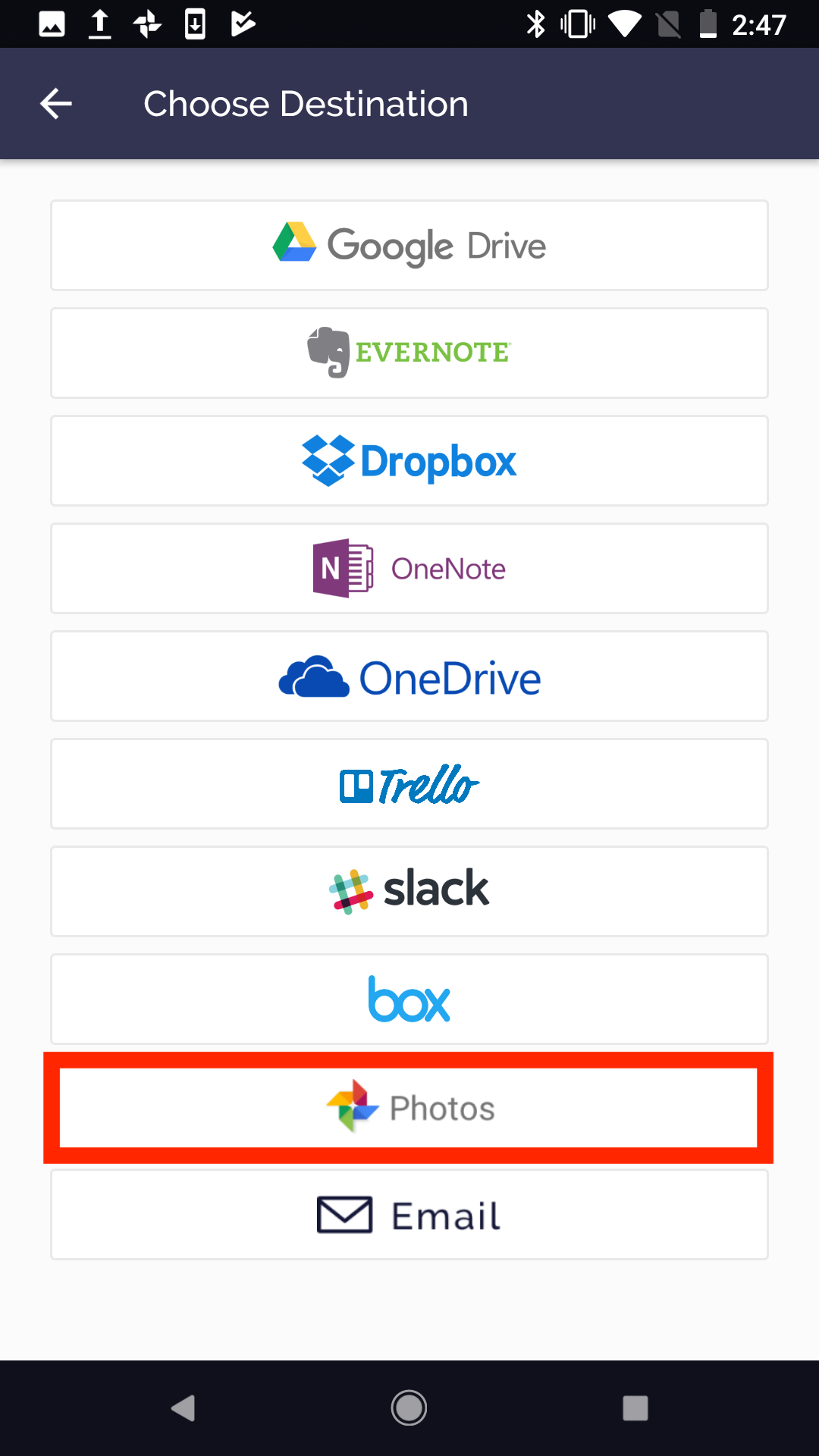
In the Rocketbook app, go to Destinations > Tap on a symbol > Change Destination > Photos

Step 2: Name Your Folder in Google Photos
Now you’ll be prompted to enter a name for the folder that holds your Rocketbook scans. After you’re done, tap the Save button.

Note: If you're having issues with your scans appearing, make sure that all of your folders are backed up within the Google Photos app. To do so, open the Google Photos app and go to Settings > Back up & sync > Back up device folders.
Step 3: Consider Destinations Settings
Congrats, your Google Photos integration is now set up! To get the most out of this destination, explore your Destination Settings. Here you can decide if you want to set up auto-send or turn on the animated GIFs feature.

Follow us: Facebook | Instagram | Twitter | LinkedIn | YouTube
For additional questions or assistance, please email us at hello@getrocketbook.com
Comments
0 comments
Article is closed for comments.